
The Carve button at the top right is the way to start. If something is missing (no machine connected, nothing to cut), it shows what to do. Otherwise it opens the carve wizard.
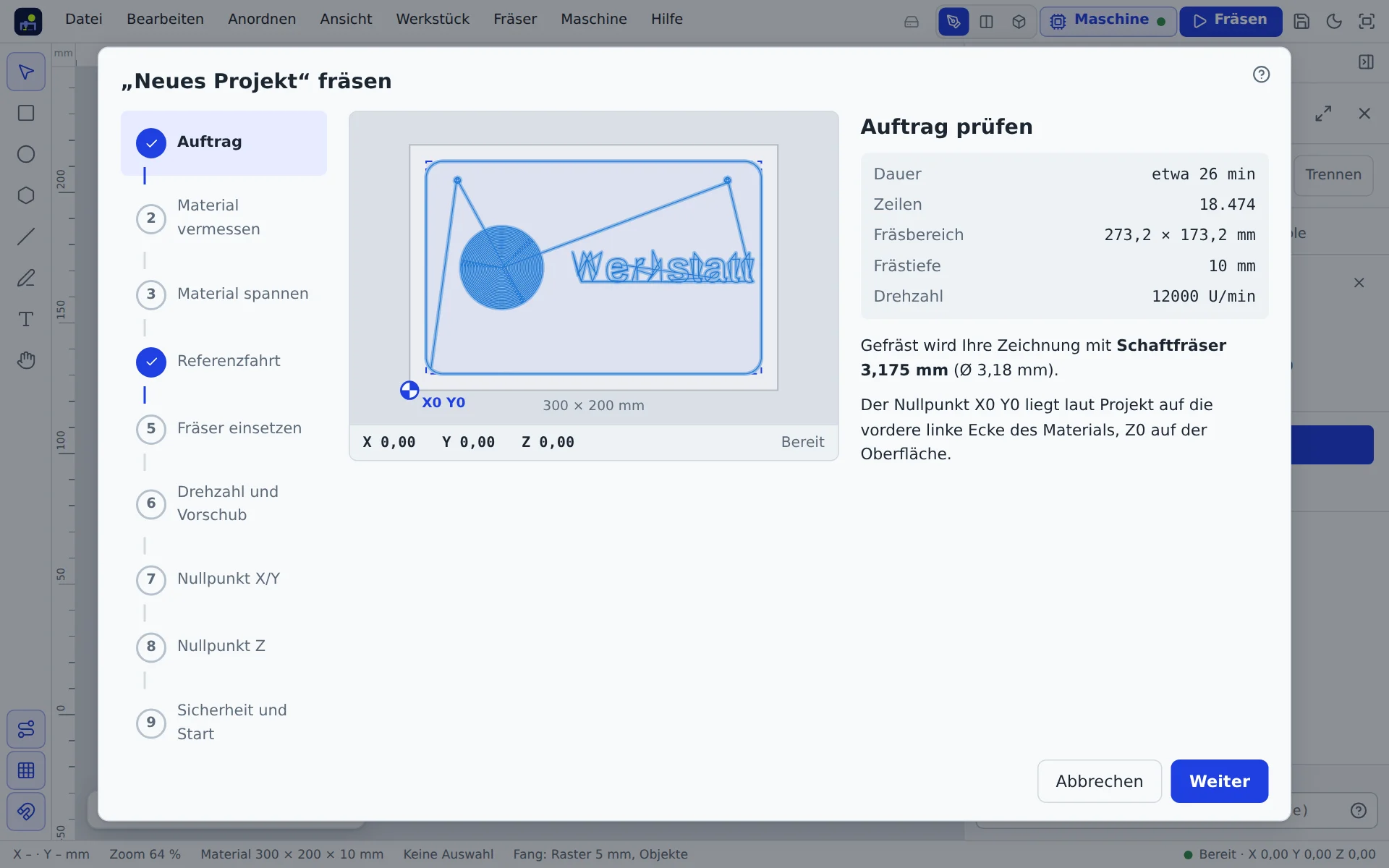
The steps
On the first page you choose how detailed the wizard is. The browser remembers your choice.
- Normal shows only the essentials in seven steps: 1. Job: duration, depth and where zero is. 2. Material: material type and thickness, then clamp it firmly, always outside the cutting area. 3. Homing (only with limit switches; if it is already done, “Home again” runs another one). 4. Insert bit: the right bit, tight in the collet. 5. Set zero X/Y. Tapping the picture moves the machine there; corners, edge midpoints and centre snap. 6. Set zero Z, with touch plate or paper. 7. Safety and start.
- Expert shows every value in nine steps. In the Job step you pick the cutting goal (fast, balanced or quality). Measuring the material (width, depth, thickness) and clamping it (clamps, tape, screws, vacuum) are separate steps. After zero Z come spindle speed, feed and depth per pass. At the end you may start without ticking the checklist.
Completed steps are ticked. The step bar jumps straight to any step.
Safety
Before the start you confirm four points. Regardless of that:
- The person at the machine is responsible for machine, workpiece and surroundings. The app checks for detectable errors but cannot guarantee a safe job.
- Simulate every job first and check zero, bit and clamps.
- Stop in the app is not an emergency stop. An emergency stop must work independently of software and radio. Keep the machine's emergency stop switch within reach.
- Wear safety glasses, hearing protection for loud machines and use dust extraction or a mask.
- Never leave a running machine unattended.
While cutting
At the bottom left, the job display shows percent, remaining time, line and run time. There and in the machine control:
- Hold stops immediately, Resume continues.
- Stop cancels the job.
- Tempo changes the feed from 10 to 500 %.
The app plays a sound at the start and end; choose the type and volume under Settings → Sounds.
Job interrupted
While cutting, the app keeps recording where the machine is: line, position, work zero, bit and spindle speed. The record is stored in your account and in this browser.
- Page reloaded or closed: the app stops the machine and resets the controller so feed and spindle stop. The browser first asks whether you really want to leave.
- Browser or PC crashed, USB cable pulled: the machine only finishes the few commands it already has. The spindle may keep running until you reconnect, so keep the emergency stop within reach.
- On the next start “Carving job interrupted” appears. The app loads the same program (or asks for the file), connects, homes and checks the work zero. If it differs, a button restores the saved one.
- Then choose the start line under “Resume from line”, suggested just before the interruption. The machine raises Z, starts the spindle, waits for spin-up and moves over the spot. It only plunges after you confirm.
“Later” keeps a notice in the machine panel, “Discard” closes the job. While cutting, the app also keeps the screen awake so the PC does not go to sleep and drop the USB connection.
Resume from a line
After an abort or an error the job does not have to start over. In the Program tab the button then reads Resume from line N …. The window suggests a line about five lines before where it stopped (better a bit cut twice than a gap); use −10, −1, +1, +10 or the slider to pick another. Below you see the program lines and the steps; on the canvas “Continue from here” marks the spot.
- Confirm that workpiece, zero point and bit are unchanged.
- Approach: the app restores units, feed and spindle, raises Z, lets the spindle spin up and rapids over the start point. There the machine stops. Check the spot.
- Plunge and cut plunges slowly and cuts the rest.
Stop cancels the approach at any time. If the program changes the bit before that line (M6) or the spindle was not switched on yet, the window warns you.
Test report and parking
After every job end (finished, stopped, error) the app creates a test report. In the Program tab Save test report (PDF) saves it. It contains job and times, workpiece, bits with cutting values, warnings and notes, errors from the controller and a picture of the toolpaths. For a G-code file the bits and cutting values are missing, because the file does not know them.
With Park after cutting (checkbox in the last wizard step and in the resume window; the default is set under Set up machine) the machine moves by itself after a finished job: spindle off, Z up, to the park position. After an abort it does not park.
Several bits
If the project needs several bits, the app cuts one part after another. After each part it stops and asks you to change the bit and probe Z again. X/Y stay unchanged.