
During homing the machine moves slowly against its limit switches. Afterwards it knows exactly where it is, even after being switched off. Only then does the app know the work area and can prevent moves beyond it.
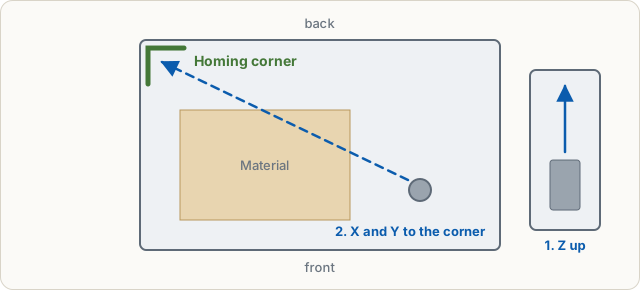
Sequence
- Z moves up to its switch.
- X and Y move together into the homing corner.
- Each axis touches its switch a second time slowly and backs off a little.
Start it with Home in the machine control, in the carve wizard or from the alarm note. During homing the app shows the steps, the position and the corner.
Which corner?
The corner is stored in the controller in $23. Without changes Grbl homes to the back right. Many hobby machines use the back left or front left. In the machine control under Machine → Homing you see corner, order, distances and speeds.
Get to know your machine
The Get to know your machine assistant (menu Machine or the control panel under Homing) finds out how your machine is built before it homes for the first time. It opens by itself the first time you connect a machine: each axis moves a short distance and you say where the bit went over the table (tick the box if your table moves for Y); you tap the corner with the limit switches or choose No limit switches and press each switch in the switch test (if you cannot reach the switches, Skip keeps the corner the controller already knows); the app shows the values it would change ($3 direction, $22 homing on/off, $23 corner) and writes them only when you click; sliders set the homing speed (seek $25, locate $24, pull-off $27, with grblHAL also locate passes $43), green marks show the recommendation and grey ones the Grbl default; after homing you tap where the machine stands. Alarm 9 (switch not found) and alarm 8 (pull-off too short) are explained with a fix.
Work area after homing
Some firmware counts from the switch after homing (0 at the switch), Grbl itself counts from the plus side (−travel … 0). The app detects this from the position right after homing and adapts limits, parking and the picture, so after homing front left you can still move right and back.
After homing the app sets a temporary origin: X and Y at the front left corner of the work area (exactly at the bit when homing front left), Z at the bit. The picture then no longer shows an old origin somewhere on the machine. Set your own origin on the material afterwards as usual; no job starts without it. If you already set an origin in this session, or an interrupted job waits for its stored origin, the origin stays as it is.
Speed and accuracy
In Get to know your machine you set the speed with sliders (recommended: seek 800 mm/min or half the rapid rate, locate 20 mm/min, pull-off 2 mm). Settings → Machine → Homing shows the controller's values: seek rate ($25), locate rate ($24) and pull-off ($27). The controller searches the switches quickly, backs off by the pull-off and then touches them slowly. The lower the locate rate, the more exactly the machine finds the same spot every time. Touch more exactly halves the locate rate. grblHAL can also touch several times (locate passes, $43); Grbl 1.1 always does one locate pass. Nothing is written until you press Write to controller.
Without limit switches
If your machine has no limit switches ($22=0), there is no homing. Move the machine to the zero point by hand and set it there (Machine control). If the controller is locked, Unlock helps.