
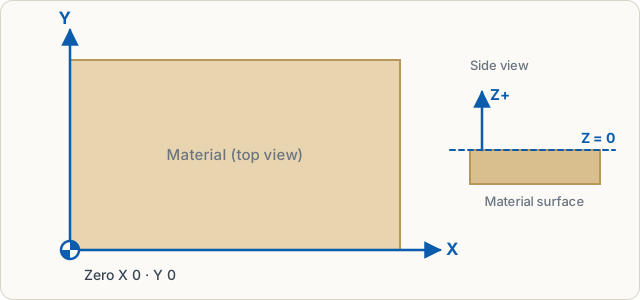
All sizes are in millimetres. The origin is at the bottom left of the material, X points right, Y points up, just as the machine calculates later.
Tools
| Tool | Key | How |
|---|---|---|
| Select | V | Click or drag a box; Shift adds to the selection |
| Edit points | N | Drag the points and curves of a shape, or double-click the shape, see Edit points |
| Rectangle | R | Drag; Shift = square |
| Circle/ellipse | E | Drag; Shift = circle |
| Polygon | P | Drag; set the number of corners on the right |
| Star, gear, spiral | S | Pick the kind at the top, drag out from the centre, see Star, gear, spiral |
| Line | L | Click start and end; Shift = 15° steps |
| Polyline | Z | Click points; Enter finishes, clicking the start point closes the shape |
| Freehand | F | Draw freely with mouse, finger or pen, see Freehand and pen |
| Curve pen | B | Click sets a corner, click and drag a smooth point; clicking the first point closes, Enter finishes open |
| Text | T | Click and type, see Text |
| Measure | D | Drag to measure distance, angle and crossings with shapes; click a shape for its perimeter and area, see Measure |
| Draw symmetrically | Y | Toggle: what you draw is mirrored or repeated around, see Draw symmetrically |
| Pan | H | or hold Space |
Freehand and pen
With F or the brush in the toolbar you draw freely: hold the mouse button, move a finger across the tablet or write with a pen (Apple Pencil, Wacom, Surface). When you let go, the stroke is smoothed and reduced to a few smooth points, which you can change afterwards with Edit points (N) like any curve. If the stroke ends where it began, the shape is closed.
A bar appears at the top:
- Smoothing Low, Medium or High: how much the shaking of the hand is evened out. Smoothing follows the screen, so zoomed in you draw finer.
- Pen pressure: with a pen the stroke gets wider with pressure and is cut as an area, like a brush. Mouse and finger always draw a line.
- Width at full pressure in mm; with the lightest touch the stroke is a quarter as wide.
Once a pen has drawn, single fingers no longer draw, so a resting palm makes no strokes. Two fingers zoom and pan the view as usual. Freehand also works with Draw symmetrically.
Draw symmetrically
With Y, the mirror button in the toolbar on the left or Edit → Draw symmetrically, everything you draw with the rectangle, circle, polygon, line, polyline, curve pen or freehand is mirrored as well. A dashed preview shows the mirror image while you drag. A bar appears at the top:
- Left/right mirrors across a vertical axis, Top/bottom across a horizontal one, Fourfold across both.
- Radial repeats the shape around the centre (Count 2 to 36), like a mandala.
- The axes initially cross in the material centre. You can drag the round handle there (it snaps to the grid and the material centre); a double-click or the Material centre button resets it.
Anything drawn across the axis merges with its mirror image into one shape, so half an outline becomes a whole heart. Shapes that are already symmetric on the axis are not created twice. Everything is one step for Undo.
Exact sizes
On the right under Properties you find position (X, Y), width, height and rotation of the selection. You can type calculations into any number field: 300/3 or 25+4.5. Up and Down in the field change the value, with Shift in steps of ten. Proportional keeps the aspect ratio.
Arrow keys move selected shapes by 1 mm, with Shift by 10 mm, with Alt by 0.1 mm.
Snapping and grid
While drawing, the pointer snaps to the grid (5 mm) and to corners and centres of other shapes. Hold Alt while dragging to switch snapping off briefly. Set grid spacing and snapping under View or in the settings (Drawing tab). The crosshair with marks in the rulers shows the exact pointer position.
View
- The mouse wheel zooms, with Shift it scrolls sideways.
- Ctrl+0 fits the material, Shift+1 shows all shapes, Shift+2 the selection.
- At the top switch between Drawing, Split and 3D.
Edit and arrange
Copy, paste, duplicate (Ctrl+D), group (Ctrl+G) and undo (Ctrl+Z) work as usual. Delete with Del or, without a keyboard, with the bin below the selection or at the top of Details. On the right under Arrange and in the menu of the same name you align shapes, distribute them evenly, mirror them and rotate, scale or skew them exactly by number, see Arrange. How to merge shapes or create an outline is explained in Editing shapes.